FAX App: Send Faxes from Phone
MunicornBusiness
4.55.63K Reviews
- Version
- 3.28.0
- Installs
- 1.00M
- Age Rating
- Everyone
Screenshots
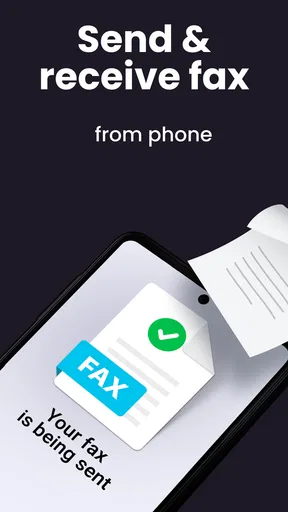
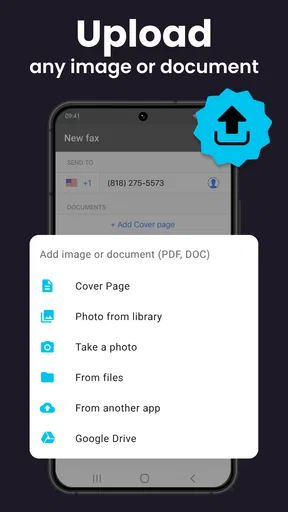

Our Review of FAX App: Send Faxes from Phone
 Analysis by Appyee
When a form has to reach a fax number and there is no fax machine nearby, a phone-based option can save a trip and a scramble. I see FAX App: Send Faxes from Phone as a practical tool for those occasional, specific jobs—not a reason for everyone to replace email or a document scanner. It is a business app from Municorn, and its appeal is straightforward: prepare a document on a phone and send it to a fax destination.
What free access means here
The app is free to download, so you can install it and look around without paying an upfront purchase price. That is useful if you only need to check whether a mobile fax workflow fits your routine. The app also offers in-app purchases, with listed item prices ranging from $5.99 to $99.99. Those figures describe the available purchase range, not a promise that every user will pay a particular amount or receive a particular allowance.
I would make the decision to pay only after checking the purchase options shown inside the app and matching them to the job I need to complete. A single urgent fax and a regular stream of business documents are very different needs. If you fax only once in a while, compare the cost of the specific option you are considering with the convenience it saves; if you send documents routinely, consider whether the paid choice suits that repeated use. The free download is a low-commitment way to inspect the app, but it should not be mistaken for unlimited free faxing.
Where the convenience earns its keep
The strongest case for a phone fax app is not that faxing becomes enjoyable; it is that an awkward errand can become a task you handle from wherever you are. Think of a contractor asked to return a signed form before leaving a customer’s site, or someone finishing a medical or insurance form at home when the receiving office accepts fax. If the document is already on the phone, avoiding a trip to a print shop or office fax machine can be genuinely helpful.
That convenience is especially valuable for people who fax too rarely to justify keeping a dedicated machine, yet often enough that asking someone else to send a document is inconvenient. It also gives a small business owner a way to handle a one-off fax while travelling. I would still keep the original document and a copy of the final file where appropriate: a mobile sending process is convenient, but good record-keeping remains the user’s responsibility.
A practical workflow before you press send
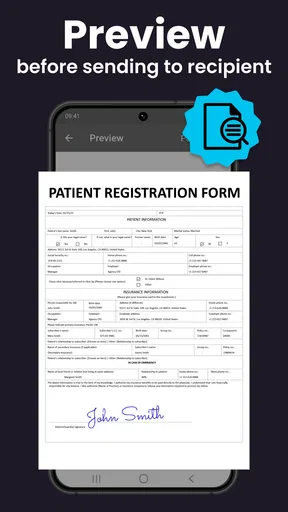
For a paper document, the camera route can spare you from finding a scanner, but the quality of the result starts with the photo. I would place the page on a flat, contrasting surface, use even light, and check that all corners and small print are visible before sending. A crooked image, shadow, or cut-off signature can turn a quick fax into a request to send the form again. Taking a moment to inspect the document is a better shortcut than rushing straight to the recipient number.
For a document already stored on the phone or in a cloud service, I would open the source file first and confirm that it is the final version. This matters with forms that have several drafts or attachments: choosing the wrong copy is an easy mistake when working on a small screen. Before sending, check the fax number digit by digit, especially when using an international number. A correctly prepared file sent to the wrong destination is still a failed task, and this simple check costs little time.
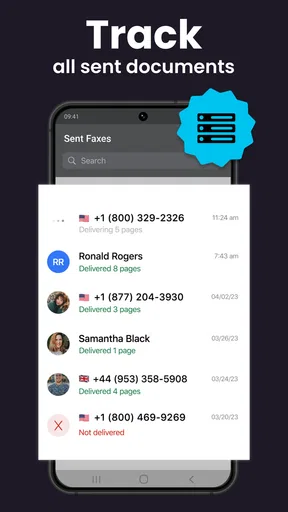
After sending, treat the app’s history and any delivery confirmation as useful evidence to review, rather than assuming that tapping the send button settles everything. If the recipient is expecting the document, I would verify that the transmission status is clear and keep the relevant record until the recipient confirms receipt when the matter is important. That habit is useful with any fax service: confirmation helps, but it does not replace checking that the right pages went to the right place.
Getting Started with the FAX App
First things first, downloading the FAX App: Send Faxes from Phone is a breeze. Available on both Android and iOS, it’s just a tap away on your app store. The installation is smooth, and before you know it, you’re ready to dive into the world of digital faxing.
The interface is impressively simple, which is a breath of fresh air if you’ve ever wrangled with a traditional fax machine. You’re greeted with a clean dashboard where you can manage your faxes, check your history, and tweak some settings. It’s intuitive enough that even if you’re not the most tech-savvy person on the planet, you won’t feel lost.
How Does It Work?
Alright, let’s jump into the nitty-gritty. How does this magic happen? It’s pretty straightforward. You start by selecting a document you want to fax. You can choose from a variety of sources – your phone’s storage, cloud services, or even snap a picture using your camera. Yes, you heard that right! Snap a pic of that important document and off it goes into the ether.
Once you’ve got your document ready, you enter the recipient’s fax number. The app provides a neat dialing pad, and it even supports international numbers, which is a nifty feature if you’re dealing with clients overseas.
That basic sequence is familiar to anyone who has used a scanner-and-fax workflow, but the phone changes where the friction lies. You no longer need to print a digital file just to feed it into a machine; instead, you choose a file or photograph a page. The trade-off is that a phone screen makes it easier to overlook a page, select an outdated draft, or mistype a number. I would review the document and destination before sending, particularly when the fax contains a signature, multiple pages, or time-sensitive information.
Security and Reliability
One of the biggest concerns with faxing from a phone is security. But rest assured, this app takes it seriously. The developers have implemented top-notch encryption protocols to keep your documents safe during transmission. It’s like having a secure, invisible shield around your data as it travels through cyberspace.
Reliability is another strong suit of this app. In my experience, faxes were sent promptly without any hiccups. The app provides delivery confirmations, so you’re never left wondering if your document made it to the other side.
For sensitive paperwork, I would be careful about the entire path the document takes, not only the moment it is sent. Choose the correct file, check that the recipient number belongs to the intended office, and avoid leaving documents open where someone else can casually see them on your screen. A delivery notice is reassuring, but it does not tell you whether a person has reviewed the pages or whether the receiving office has filed them correctly. If a recipient has a secure online portal and specifically supports it, that may be a better fit for some confidential submissions.
Extra Features Worth Mentioning
While the main function is sending faxes, the app also packs a few extra features that are worth mentioning. For instance, you can organize your faxes neatly in folders, making it easy to keep track of your sent and received documents. It’s like having a mini-filing cabinet in your pocket.
The app also supports multiple file formats, which is super handy. Whether it’s a PDF, DOC, or JPEG, the app can handle it. This flexibility makes it suitable for various business needs.
Folders are most useful when they reflect how you actually look for documents later. I would separate records by client, project, or purpose rather than leaving everything in one catch-all place; that makes it easier to find a prior transmission when someone asks which version was sent. Before relying on a folder as an archive, though, keep any business records in the storage system you normally use as well. A fax app can make sending and reviewing convenient without needing to become the only home for important paperwork.
File flexibility also has a practical limit: a format being accepted does not guarantee that a page will look exactly as intended at the receiving end. A layout that is easy to read on a phone may become cramped on paper, especially if the text is small or the page has wide tables. For a document where legibility matters, review each page at a readable size before sending and use a clean PDF when you have one. If the original is a paper form, frame the camera image carefully so the edges, handwritten details, and signature remain clear.
Pricing and Subscription
Now, let’s talk money. The app offers a free trial, which is perfect if you want to test the waters before diving in. After that, there are several subscription options to choose from, depending on how frequently you need to send faxes. The pricing is competitive, and considering the convenience it offers, it’s a worthwhile investment.
I would not assume that a trial or any particular subscription is the right deal for everyone. The sensible question is how often you expect to fax and what the in-app purchase screen says the selected option includes. The app is free to install, while in-app purchase items range from $5.99 to $99.99. Check the terms presented before confirming a purchase, and consider whether your need is a one-time task or an ongoing business routine. That is a more reliable way to judge value than comparing the app with the cost of a fax machine you may never use.
Who Should Use It—and Who May Prefer Another Option
I would recommend trying this app if you already have documents on your phone, occasionally need to reach a fax number, and value avoiding a trip to a physical machine. It is also a reasonable option for a small business that handles sporadic forms rather than a constant high volume. The app is rated for Everyone, has an average rating of 4.5 from around 62,000 ratings, and has been installed over a million times. Those figures suggest it has reached a broad audience, though they cannot tell you whether its purchase options or workflow suit your particular needs.
If you send faxes all day, process large batches, or need a team-wide document system, I would compare it with a dedicated office fax service or an established business document platform before settling on a phone app. Those alternatives may fit a coordinated workflow better. If the recipient accepts email attachments or a secure web submission, that route may be simpler for a document that does not specifically need fax delivery. The app’s advantage is most apparent when fax is genuinely required and the phone is the most convenient tool available.
It may also be the wrong choice if you are looking for a general-purpose scanner and filing system rather than a faxing tool. The store description identifies its purpose as sending and receiving mobile PDF documents, and its short description is “FAX App”; I would judge it primarily on that job. For extensive editing, searchable archives, or a company’s controlled approval process, a specialist document-management tool may be more appropriate. A focused app can be useful without replacing every part of an office workflow.
Final Thoughts
So, what’s the verdict on the FAX App: Send Faxes from Phone? It’s a game-changer for anyone who needs to send faxes without the hassle of a traditional machine. With its user-friendly interface, robust security, and reliable performance, it’s a solid choice for both personal and professional use.
If you’ve been on the fence about ditching your old fax machine, this app might just be the nudge you need. It’s like having a powerful fax machine right in your pocket, ready to send your documents across the globe at a moment’s notice. Give it a try, and embrace the future of faxing!
My recommendation is more measured: if you have a real fax to send, the free install makes it reasonable to explore the workflow, then decide whether an in-app purchase is worth the convenience for your situation. Municorn’s app is on version 3.27.0 and supports Android 8.0 and later, details worth checking against an older device before you plan around it. For occasional personal or small-business use, I find the phone-first approach appealing; for frequent, highly managed, or especially sensitive work, compare it carefully with the service or document system your organization already trusts.
Verdict
Strengths of FAX App: Send Faxes from Phone
- Easy to use interface for quick faxing.
- Supports multiple document formats.
- Secure transmission with encryption.
- Integrates with cloud storage services.
- No need for a physical fax machine.
Limitations of FAX App: Send Faxes from Phone
- Requires internet connection to send faxes.
- Subscription needed for full features.
- Limited free trial pages available.
- May have occasional transmission delays.
- Some features require manual setup.
Similar Picks in This Category
View All
LinkedIn: Community & Network
LinkedIn3.8

Zoom Workplace
zoom.com4.1

Microsoft Teams
Microsoft Corporation4.6

Meta Business Suite
Meta Platforms, Inc.4.6

Webex Meetings
Cisco Systems, Inc.4.5

TeamViewer Remote Control
TeamViewer4.4
Frequently Asked Questions
How does the FAX App work?
The FAX App allows users to send faxes directly from their smartphones. By using the app, you can select documents from your phone's storage, cloud services, or even scan them using your camera. The app then converts these documents into a fax format and sends them to the recipient's fax machine over the internet.
Is the FAX App secure for sending sensitive documents?
Yes, the FAX App employs encryption protocols to ensure that your documents are transmitted securely. It is designed to protect sensitive information during transmission. However, it's always advisable to check the app's privacy policy and terms of service to fully understand how your data will be handled.
What file formats does the FAX App support?
The FAX App supports a variety of file formats, including PDF, DOC, DOCX, JPEG, and PNG. This flexibility allows users to fax different types of documents without needing to convert them beforehand. Always check for any updates, as supported formats may expand over time.
Are there any costs associated with using the FAX App?
While the FAX App is free to download, it may require in-app purchases or a subscription for full functionality. These costs might include buying credits or a monthly plan for sending a certain number of faxes. Always review the pricing details in the app store description before downloading.
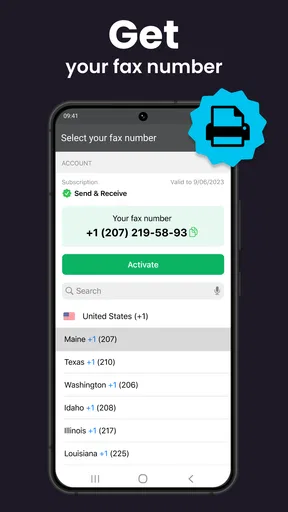
Can I receive faxes using the FAX App?
The FAX App primarily focuses on sending faxes. However, some versions may offer receiving capabilities through the assignment of a virtual fax number. This feature may require an additional subscription. It's important to check the app's features list to confirm availability and any extra costs.
